Scanned PDF → editable Word · Free to start · No sign-up
Convert a Scanned PDF to an Editable Word Document
A scanned page has no text in it — only a picture of text. Upload yours and an AI vision model reads the page and rebuilds it as a Word document with real headings, real tables and text you can type into, instead of dropping the scan into a box you cannot edit.
Upload a PDF Basic mode is free and needs no account: 10 pages a day and 100 a month, rising to 100 pages a day and 1,000 a month once you sign in. Scanned pages come back as page images, with any text the PDF already carries left editable. AI mode transcribes scans into real editable text — sign in and add a payment method, or paste your own API key below. No watermark.
Converting…
Off by default. Your PDF is deleted on schedule unless you tick this; ticked, it is kept for our engineers to study this conversion. Untick any time.
Options · AI / Basic · your own key
Advanced — bring your own AI provider
Scanned pages are read by an AI vision model. Bring your own provider to convert scanned pages at your provider’s rates and the quality you choose.
Applies to your own key. Scanned pages use AI vision either way.
Used only for this one conversion. Never stored, never logged.
Last updated: 2026-09-16
What "scanned" actually means — and why converters choke on it
Two files can both be PDFs and have nothing in common inside. A born-digital PDF — exported from Word, from a typesetting system, from an accounting package — carries the actual characters, their font, their coordinates. A scanned PDF carries a photograph. To a computer the second is a picture of a page, the way a holiday snapshot is a picture of a beach: there is no text in the file to extract, because there is no text in the file.
That single difference is why the same converter can feel excellent on Monday and useless on Tuesday. Hand it a born-digital contract and it copies characters across. Hand it a photocopied one and there is nothing to copy, so something has to invent the text — and if nothing does, the honest fallback is to paste the page in as an image, which is how you end up with a .docx you cannot edit a word of. Search for the problem and you land in forum threads rather than on product pages: r/pdf on Reddit, Microsoft's own tech community, the same question asked over and over for years.
Most real documents are a mixture, which is the part people underestimate. A report exported from Word with a scanned signature page bound in at the back. A filing that is clean text until the stamped appendix. A book chapter photographed on a desk. So pages are classified one at a time here — text, scan or blank — and routed accordingly: the text pages are extracted directly and cost nothing, and only the pages that are genuinely images go to the AI model. You are told how many pages need AI before anything is charged, and offered Basic mode instead.
A ten-second check you can run yourself, before converting anything: open the PDF and try to select a line of text with the cursor. If a line highlights, the page is born-digital. If the cursor draws a rectangle over the whole page and nothing highlights, you have a scan — and a converter that only reads text layers has nothing to work with.
How to convert a scanned PDF into an editable Word document
- Upload the scanned or photographed PDF. No account, no install, no email address.
- Each page is classified as text or scan. Scanned pages are read by an AI vision model, which recovers the text and the structure around it; text pages are extracted directly.
- Download the .docx and edit it in Word, Google Docs, LibreOffice or Pages.
Nothing is emailed to you and there is no redirect to a second site. Word is the default output; the same rebuild can hand you an Excel spreadsheet or Markdown instead, and a PDF shaped like a slide deck is routed to PowerPoint automatically.
Step-by-step version: the full guide.
Editable means editable: what comes back
"Editable" is doing a lot of work in this market, so it is worth pinning down. A page pasted into Word as a picture is editable in the sense that you can move the picture. Text scattered across forty floating boxes is editable until you add a word and the boxes start overlapping.
The test is not how the file looks when it opens — it is what happens when you change something. Delete a sentence and the paragraph should reflow. Retype a figure in a table and the row should hold. Insert a line and the rest of the page should move down rather than shatter. That only works when the document is built out of Word objects: headings and body text as real Word styles, tables as real rows and columns, lists as real lists, fill-in rules and ruled cells rebuilt as structure. Which is what the page below shows better than another paragraph would.
Proof
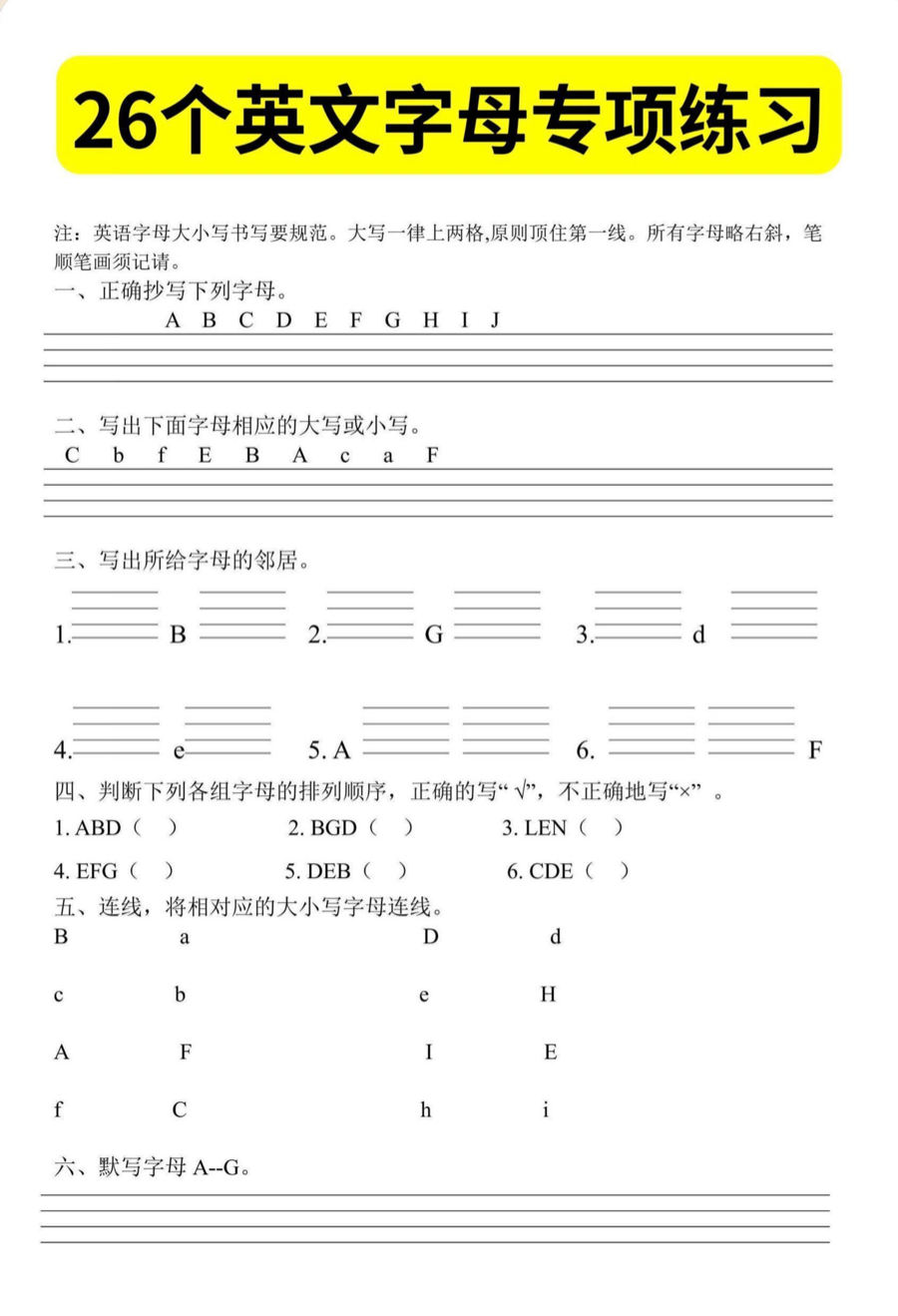
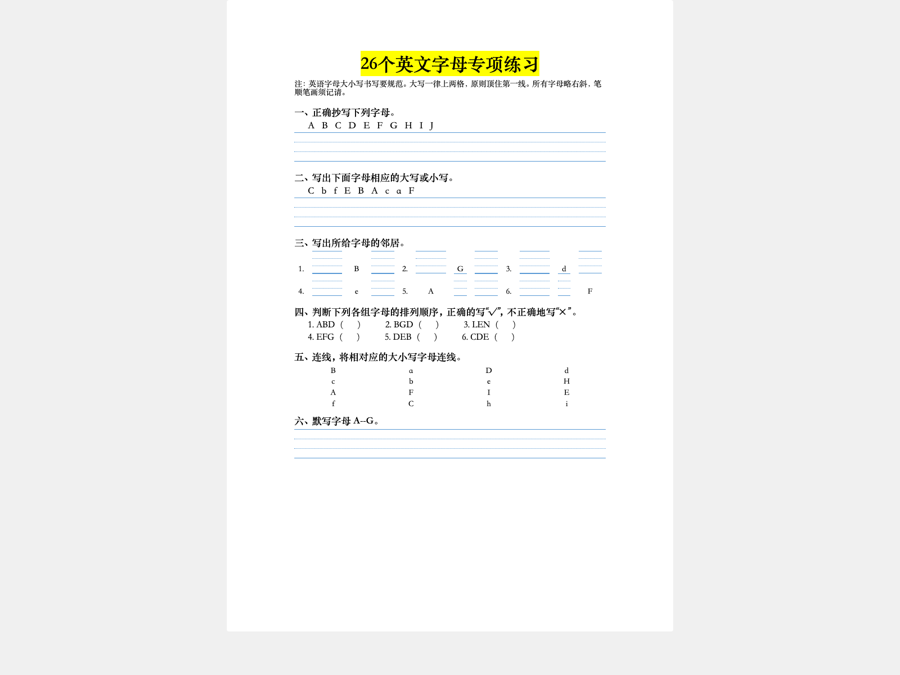
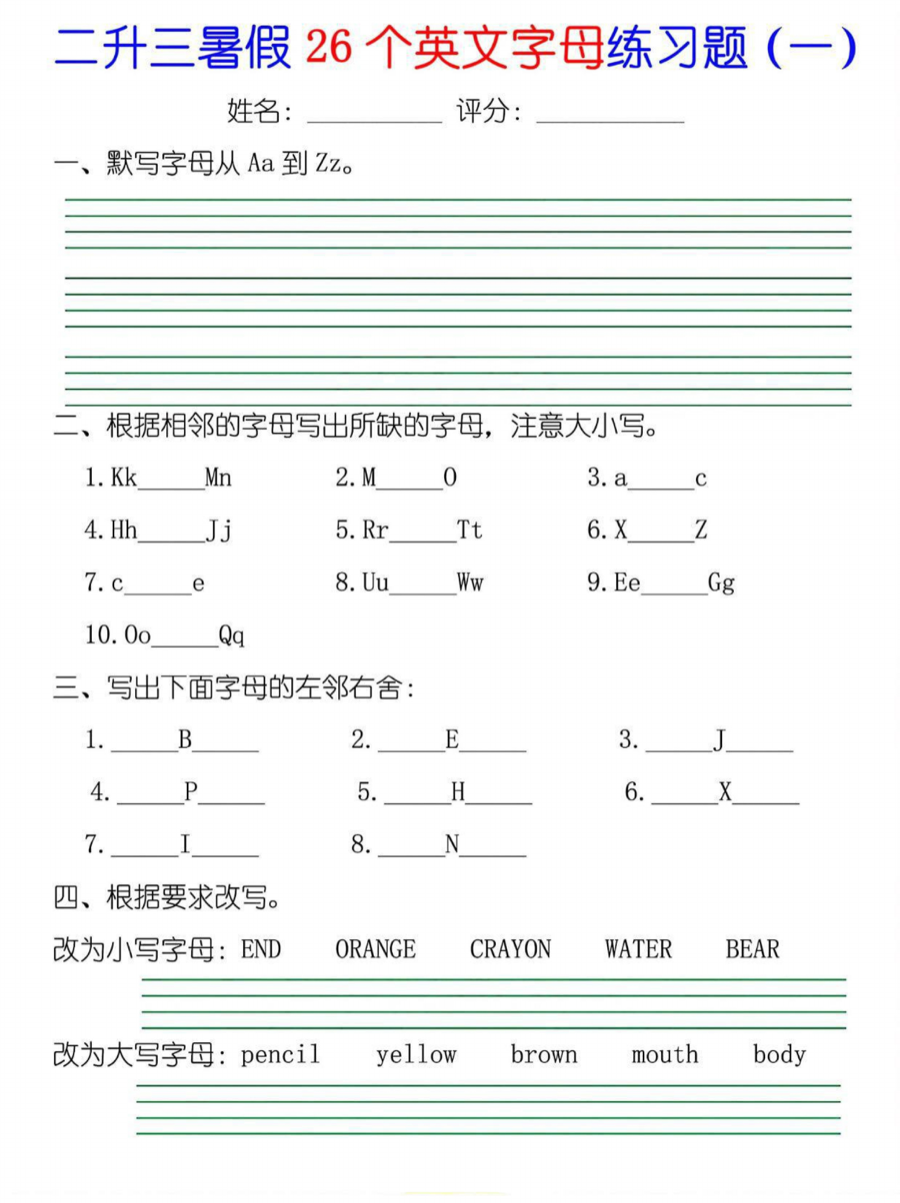
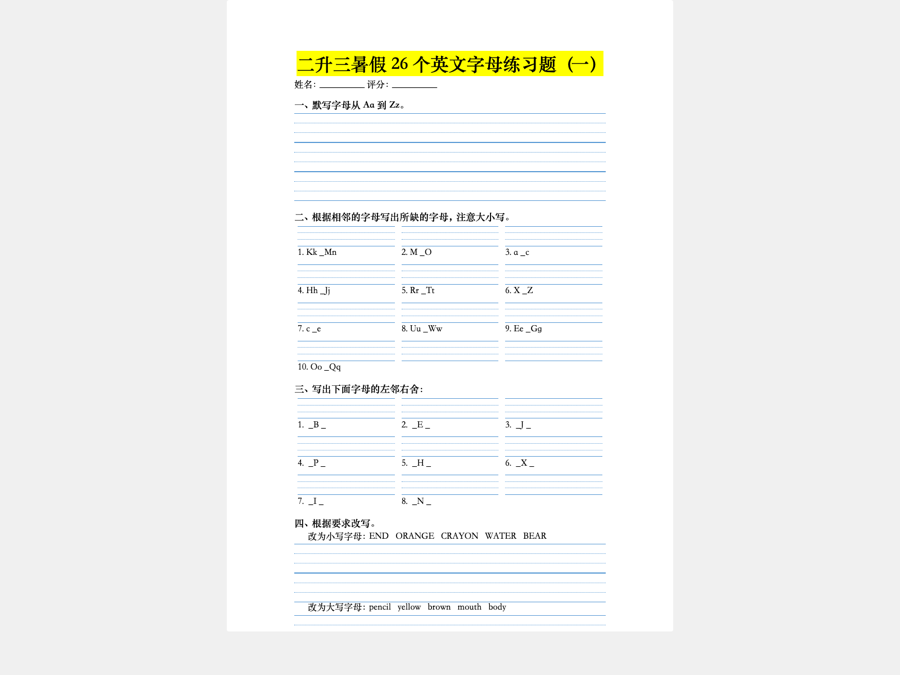
A scan goes in. A document you can type into comes out.
Keeping the formatting
This is the most-asked question in the whole category, and it deserves a straight answer rather than a promise. There are two ways to make a converted page look like the original. One is to imitate it: drop a text box wherever ink appeared, at the coordinates it appeared at. That reproduces the screenshot and nothing else, and it survives until your first edit.
The other is to rebuild the document: work out that this line is a heading, that block is a two-column body, those ruled boxes are a table with four rows, and then write those conclusions into Word as the things they are. Rebuilding is harder and it is the only approach where the formatting is still there after you have worked in the file for an hour. Heading hierarchy, columns, margins and page setup, table structure, paragraph spacing and indents all come across as document properties rather than as drawings.
What we will not tell you is that the result is pixel-identical, because rebuilding and pixel-identity are different goals. A rebuilt document may break a line in a slightly different place than the scan did. Every conversion is checked automatically before you get it — page count against the source, the text compared back against what was read off the page, an audit that the styles are editable — and those checks are about the document being sound, not about it being a photograph of the original. It is the same rebuild behind our general PDF to editable Word converter, and the same mechanisms — headings, tables, columns — worked through in convert PDF to Word without losing formatting.
Scanned Chinese, forms with ruled grids, multi-column reports
The hard scans are not the ones with long paragraphs of English prose. They are the ones with structure: a form of ruled fill-in cells, a two-column academic paper with footnotes, an official notice with a stamp across it, a worksheet of handwriting grids, a fee schedule that is one dense bordered table. The worksheet in the before/after above is one of the files this converter is developed against — a real photocopy, every page of it classified as a scan — and the wider regression set is built of the same awkward shapes: multi-column reports, official notices, footnoted papers, documents of multi-level numbering and dense bordered tables.
Scanned CJK documents concentrate every one of those problems at once, and they add a font problem on top: a .docx stores a typeface's name, not the typeface, so a Chinese document can be perfect and still show as empty boxes on a machine that cannot resolve the name. If that is your case, the PDF to Word with Chinese characters page goes through it properly: Simplified and Traditional, the three faults people all call "garbled", and which font names actually travel.
OCR vs rebuilding the document
OCR — optical character recognition — answers one question: which characters are printed here? But it answers only that question. Classical OCR hands back a stream of characters with coordinates; it does not tell you that the stream contains a heading, that these six lines are a table with three columns, that this rule is a blank to be filled in rather than an underline. Paste raw OCR output into Word and you get the words back and the document gone.
That gap is why scanned pages here are read by a vision model rather than a classical OCR engine: the model sees the page as a page, so it reports the structure along with the text, and the structure is what gets rebuilt into Word.
OCR still earns its place, though — as a second opinion. An AI model that misreads a page produces a confident, plausible, wrong answer, and checking the Word file against the model's own output will never catch it: the two agree by construction. So an independent OCR engine, which shares no machinery with the vision model, re-reads the page and its reading is compared against the model's. When the two readings diverge at the scale of a section, that page is recorded as one to look at. It is a safety net inside the pipeline rather than a guarantee about your document — but it is why hallucination is something measured here rather than hoped about.
What's free, what needs a card, and what to do with a 200-page scan
Basic mode converts text-based PDFs free: no account, no watermark. It is bounded rather than unlimited. Basic mode is free and needs no account: 10 pages a day and 100 a month, rising to 100 pages a day and 1,000 a month once you sign in. That is genuinely most of what gets uploaded, and it is why the per-page classification matters — the text pages of your mixed document never cost anything.
Scanned pages are different, because reading a page with an AI model costs real money every time. Turning them into real editable text is AI mode: sign in and add a payment method, or paste your own API key — Anthropic, OpenAI, Gemini, or any OpenAI-compatible endpoint — and convert at your provider's cost. AI mode, which transcribes scanned pages into real editable text, requires a signed-in account with a payment method on file and draws on that same account allowance; beyond it, purchased pages are charged. Converting with your own API key is not metered at all. Without either you get Basic mode, offered right there: free and immediate, the text pages fully editable, the scanned ones embedded as page images with any text they already carry left editable, and the result telling you how many pages landed that way. Page packs are listed on the pricing page.
On privacy, the short version: converting needs no account and no email address, the output carries no watermark, and converted files are deleted automatically — six hours after conversion by default. Worth knowing before you upload a contract or a client's records; the privacy page has the detail.
Image, OCR text, or a rebuilt document — three things a scan can become
| What you get back | Text you can edit | Headings & tables | What breaks first |
|---|---|---|---|
| Scan pasted into Word as a picture | None — it is still an image | None | Everything: you cannot change a single word |
| Typical OCR-only converters — a stream of recognised characters | Yes | Rarely; rows and headings arrive as ordinary paragraphs | Tables collapse into runs of text; reading order scrambles on multi-column pages |
| Rebuilt as Word objects (this converter) | Yes | Real Word styles, real table rows and columns | Line breaks may fall in different places than the scan; it is not pixel-identical |
The first two rows describe categories of tool, not any named product — we have run no competitor benchmark and will not publish numbers we did not measure.
Sources
Vendor behaviour described above is cited from official documentation, each page checked 2026-09-16. Each vendor is quoted only about its own software.
FAQ
Scanned PDF to Word — questions
How to convert a scanned PDF into an editable Word document?
Upload the PDF here and download the .docx — there is no setting to configure and no account to make. Each page is classified first: pages that already hold real text are extracted directly, and pages that are only an image are read by an AI vision model, which recovers the text and the structure around it. The result is rebuilt as Word objects — headings, paragraphs, table rows — so you can type into it straight away.
Can you convert a PDF into an editable Word document?
Yes, and "editable" is the part worth checking. Some conversions open in Word but are really a picture of the page, or text scattered across floating boxes that collapse the moment you change a line. What you want is a document made of Word objects: styled headings, paragraphs that reflow when you delete a sentence, tables whose rows hold when you retype a figure. That is what this converter rebuilds, from scans as well as from text PDFs.
How do I keep the layout when converting a scanned PDF to Word?
A scanned page has no text layer at all, so there is no glyph position, no font name and no table object to carry over — the structure has to be read off the image before anything can be rebuilt. That is why the formatting you get back depends on how the page was read, not on how it was copied: a page read as one flat picture stays a picture, while a page read as headings, rows and columns can be written as Word styles and table objects. The mechanisms behind headings, tables and columns are the same for any PDF.
How do I make a PDF editable in Word for free?
Converting it to .docx is the whole answer — a PDF itself is a print format, and Word only edits it properly once it has been rebuilt as a Word document. Upload the file, let each page be classified as text or scan, download the .docx and edit it in Word, Google Docs, LibreOffice or Pages. No install, and Basic mode needs no sign-up: Basic mode is free and needs no account: 10 pages a day and 100 a month, rising to 100 pages a day and 1,000 a month once you sign in.
How to create an editable PDF from a scanned document?
This tool makes an editable Word document, not an editable PDF, so it is worth saying plainly. In practice the Word route is the one most people want anyway: you get real text you can rewrite, restyle and search, and exporting back to PDF from Word takes one command. If your goal is only to make the text searchable while keeping the PDF, that is a different job called adding an OCR text layer.
How can I convert a scanned document into editable text?
Scan or photograph it to PDF first — a phone camera is fine — then upload that PDF here and download the .docx. The pages are read by an AI vision model rather than pasted in as pictures, so what comes back is text you can select, search, retype and paste elsewhere. Straighten badly skewed pages before uploading if you can; a level page is easier for any reader, human or machine.